FORTE, Mouser's intelligent BOM Tool transforms your imported bill of materials into an industry-leading part research and purchasing platform. Set preferences for how you want your BOM to be processed such as currency, formatting, RoHS options, and more. The tool will even remember your preferences and column mapping for future BOMs.
Export Your BOM
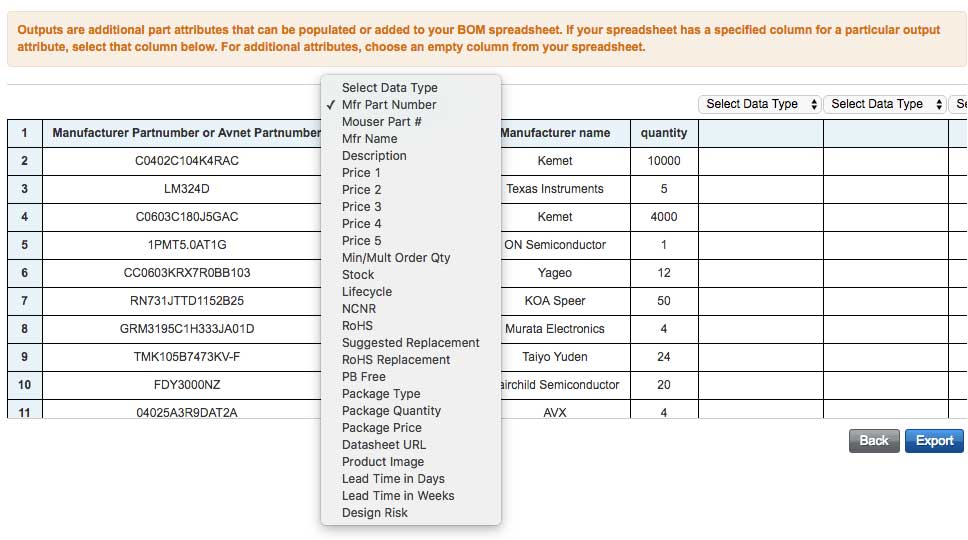
To export your BOM, select the Export option in the BOM Toolbar.

You will need to map which data you want to save to your BOM file.
Available data to export includes:
- Manufacturer Part Number
- Mouser Part Number
- Manufacturer Name
- Description
- Price
- Minimum / Multiple Order Quantity
- Stock
- Lifecycle
- NCNR (Non-Cancellable / Non-Returnable)
- RoHs (Yes / No for the RoHS compliance status)
- Suggested Replacement
- RoHS Replacement
- PB Free
- Package Type
- Package Quantity
- Package Price
- Datasheet URL
- Product Image
- Lead Time (Days)
- Lead Time (Weeks)
- Design Risk
Share as cart
Select the "Share as Cart" link from the BOM toolbar to share your BOM as a cart with others.

The Share BOM Modal will display. You can share your BOM as a Cart with up to 10 email recipients.

Print BOM
Select the "Print This Page" link from the BOM toolbar to print the current page. Your browser will open the print dialog screen.

Back to Tools
Related Articles